flymysql/dsh-remote
Remote-work assistant for DeepSeek Harness (DSH): connect via SSH (key or password), pick a remote workspace, operate with rw_* tools, and SFTP-mirror it into a real local DSH workspace.
Listed
20
Tools
Bundle verified
Preview
What it does
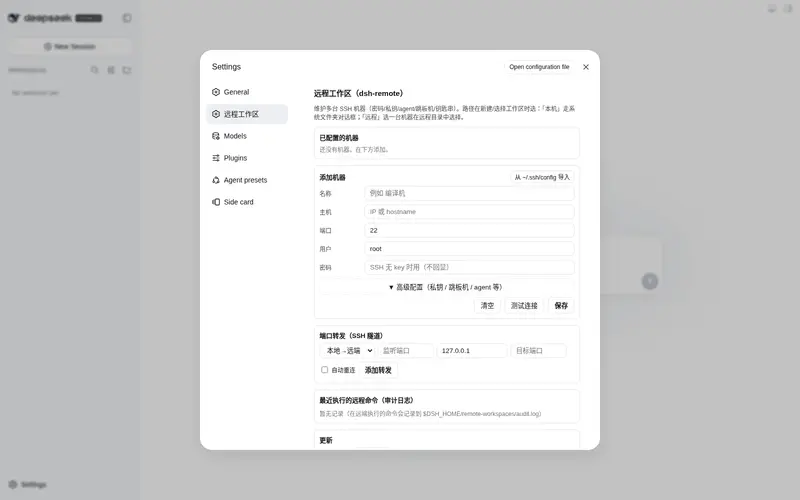
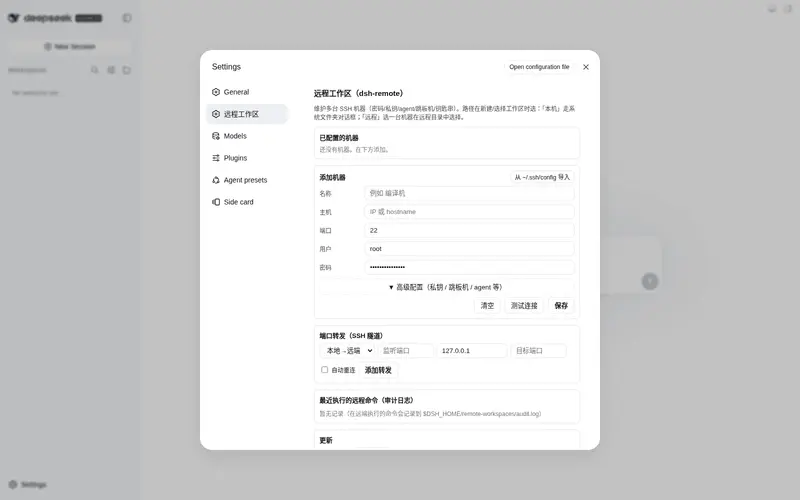
Multi-machine remote workspace: manage many SSH hosts, pick a local or remote workspace in the native Add-workspace flow (system folder chooser / local path / remote dir browse), mirror a remote workspace to a real local folder, and operate it with rw_* tools. The picker is a centered modal that opens on the local tab and auto-fills `/` for remote paths, live-completing each directory level.
Best for
- Developers who need to work on multiple SSH machines from the normal DSH workspace flow.
- Remote development that benefits from a real local SFTP mirror plus explicit pull and push operations.
- Agents that need to browse, read, write, search, transfer files, or run commands on a selected remote workspace.
- Users who want local and remote directory selection within the native Add-workspace experience.
Not ideal for
- Untrusted hosts or accounts where giving the agent SSH-level shell access is unacceptable.
- Workflows that cannot store SSH passwords locally or otherwise protect the credential file.
- Projects dominated by files above the configured per-file mirror size cap.
- Users expecting edits to synchronize implicitly without using the documented `rw_sync` and `rw_push` operations.
README
English · 中文
dsh-remote



Remote-work assistant for DeepSeek Harness (DSH).
Manage several SSH machines, then pick a remote workspace (or a local one) and let the agent operate right there without leaving the harness — listing files, reading code, running builds & commands over the remote host, and keeping that remote directory mirrored into a real local workspace object.
The harness Web UI intentionally binds 127.0.0.1 (the CLI rejects --host 0.0.0.0 for safety). This plugin goes the other way: you connect out to the machines you maintain, pick a workspace, and work in it through the normal DSH workspace + agent fs flows — no changes to dsh-workspace or the harness core.
Screen previews
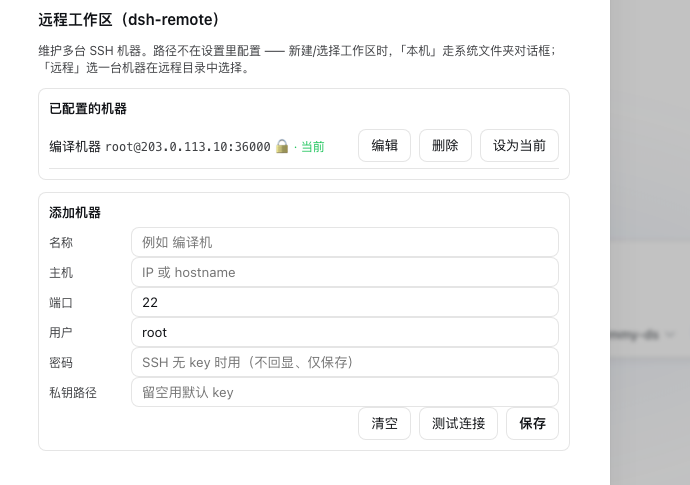
Settings → 远程工作区 — a multi-machine SSH registry (add / edit / delete / set-current, password stored locally):
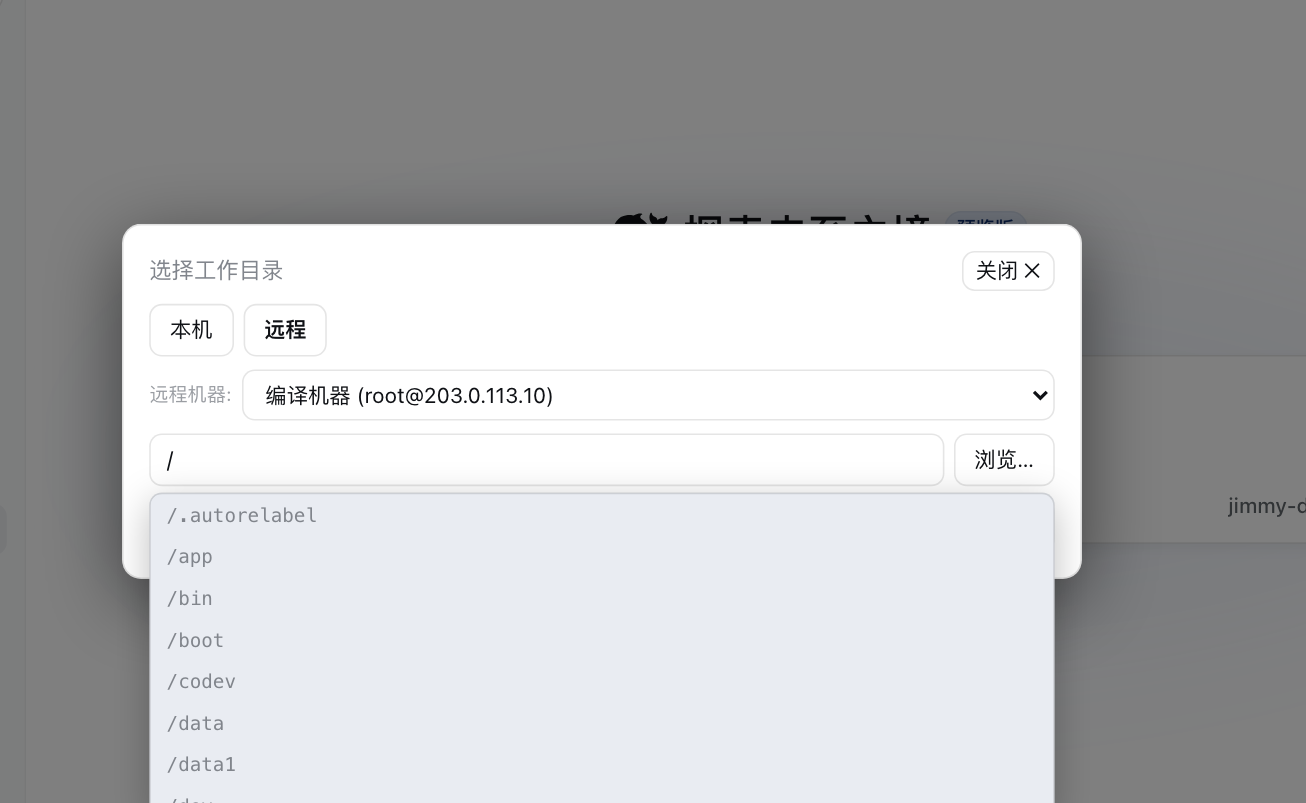
The native “Add workspace” / “Select workspace” flow — a centered modal, two tabs, opens on 本机 (local); switch to 远程 (remote):
-
远程 — a machine
<select>, a path field that auto-prefills/and live-completes directories (picking one immediately reveals its next level, OS/VSCode-style), plus a 浏览… floating browser that fills the field without committing — you review, edit, then 设为远程工作区.
Real capture (host scrubbed to a placeholder):
Features
-
Multi-machine SSH — save any number of hosts (
host/port/user+ private key or password). Passwords are stored locally and never shown back in the UI. Switch with one click in Settings. -
Two-tab workspace picker (fills the native “Add workspace” flow):
-
本机 / Local — opens the native OS folder chooser over the host, or lets you type a local path → adopted directly as a normal DSH local workspace (local workspaces fully coexist). The chooser uses the DSH
directoryPickerservice when available and otherwise falls back to the plugin’s own native picker (macOSosascript/ Linuxzenity→kdialog) — so it works even when the framework service isn’t registered on the desktop boot path. -
远程 / Remote — the picker is a centered modal (never squeezed into a narrow sidebar). Pick a machine → the path field is pre-filled with
/and live autocompletes directories; selecting a directory immediately lists its next level (OS/VSCode-style cascade). A 浏览… floating browser (opaque, height-capped, scrollable, follows symlinks) fills the field without committing — you review, edit, then confirm. On confirm it creates a real local mirror under$DSH_HOME/remote-workspaces/<host>-<user>-<port>/<base>(a short path-hash is appended only when a different remote path already took the same basename) that passesfs.realpath→ the harness adopts it as a real workspace while dsh-remote keeps it synced over SFTP. The chosen workspace is persisted on the machine, so it survives restarts.
-
本机 / Local — opens the native OS folder chooser over the host, or lets you type a local path → adopted directly as a normal DSH local workspace (local workspaces fully coexist). The chooser uses the DSH
-
Bidirectional SFTP sync —
rw_sync(remote → mirror) andrw_push(mirror → remote) round-trip your local-mirror edits back to the machine. Both are incremental: files whose size + mtime already match are skipped, and a per-file size cap prevents accidental big-binary downloads. Directory sweeps run with bounded parallelism. -
Model tools —
rw_info,rw_connect,rw_pick_workspace,rw_list_dir,rw_read_file,rw_write_file,rw_exec(runs in the current workspace by default, orcwd=<path>),rw_search(portable recursive grep),rw_download,rw_upload,rw_sync,rw_push,rw_disconnect. -
Write directly to a remote file —
rw_write_filecreates or overwrites a remote file (making parent directories), so you don’t have to round-trip through a local mirror for a single-file edit.rw_download/rw_uploadmove a single file either way when you need the real bytes. - Connection health — a 「测试连接」 test-connection button in the Settings page validates host/user/key/password before you save a machine.
- The active
user@host:/pathis injected into every system prompt so the agent knows its working root. -
No official
dsh-workspacecore is modified — everything is delivered as a normal plugin (directory-flow holes filled by the client half atpriority -100). -
Cross-platform remotes — commands use portable POSIX forms (
ls -la,sed -n,find … -exec grep), so the same plugin works against macOS/BSD as well as GNU/Linux hosts. -
Host-key verification (TOFU) — every SSH connect verifies the host key
(
hostKeyMode: accept-new): first connect records it, a later CHANGE is rejected as a possible man-in-the-middle.verifyalso refuses hosts never seen before;offdisables it. Stored at$DSH_HOME/remote-workspaces/known_hosts.json; reset with/remote forget-key. -
Data lives under the harness home — machines + mirrors follow
$DSH_HOME(the desktop app sets it to its ownuserData/harness); pre-0.6 data under~/.dsh/remote-workspacesis migrated automatically on first run.
Install
dsh plugin add dsh-remote # add the bundle
(or npm install dsh-remote + add - id: dsh-remote / name: dsh-remote in cordis.patch.yml).
Quick start
- Add a machine — Settings → 远程工作区 → add host/port/user + key or password → (optional) set it current.
-
Open a workspace — click Add workspace in the sidebar / conversation:
- 本机 → system folder chooser (or type a local path) → local workspace.
-
远程 → choose the machine → browse to a remote directory (or type
/path) → “设为远程工作区” ⇒ a local mirror workspace is created and adopted.
-
Work with the agent — treat it like any workspace:
-
rw_list_dir(path?)/rw_read_file— inspect remote files -
rw_write_file(path, content)— create or overwrite a remote file directly -
rw_search(pattern, path?)— grep remote files -
rw_exec(command, cwd?)— run remote shell commands (defaults to the workspace dir) -
rw_sync/rw_push— pull/push the local mirror to and from the remote
-
CLI defaults (optional)
Provide a default machine in cordis.patch.yml:
# Example only — use values for your own machine.
- id: dsh-remote
  name: dsh-remote
  config:
    host: 203.0.113.10   # or your real host / hostname
    port: 22
    username: dev
    privateKeyPath: ~/.ssh/id_rsa
    # or password: '…'
    workspace: ~/project
If host is empty the plugin starts disconnected and you configure machines in the UI.
CLI quick reference
Installing and driving DSH may live in different shells, so both the dsh binary and the npx form are shown. Always tell DSH which profile to use with --profile <name> (usually web).
# install the bundle into a profile (npm is pulled by pnpm; recommended)
dsh plugin --profile web add dsh-remote
# same but when `dsh` is not on PATH (e.g. Windows PowerShell inside a repo)
npx --yes @deepseek-ai/dsh plugin --profile web add dsh-remote

# confirm it is installed wire
dsh plugin --profile web list
npx --yes @deepseek-ai/dsh plugin --profile web list

# start the web surface (reload profile; the plugin activates on boot)
dsh --profile web
npx --yes @deepseek-ai/dsh --profile web   # http://127.0.0.1:3080

# use a local checkout instead of the npm version (dev iteration)
npx --yes @deepseek-ai/dsh plugin --profile web add /path/to/dsh-remote
npx --yes @deepseek-ai/dsh plugin --profile web remove dsh-remote   # back to release
After a successful start, Settings → 远程工作区 appears and the “Add workspace” flow gains the 本机 / 远程 tabs (screenshots above).
Development (sandbox, not product)
Iterate in the sandbox, never by hand-editing a product profile — the product profile is re-managed by the plugin manager and reverts hand-deployed files on reinstall. Use the helper script:
scripts/dev-run.sh --restart   # start / restart the isolated sandbox
scripts/dev-run.sh --stop      # stop it
scripts/dev-run.sh --status    # is it running?
- Runs its own DSH instance (
dev-harness/harnessinside this repo) with the plugin copied in fromlib/— it boots through the samebin.js web --patchpath as the desktop app, so the sandbox reproduces the product boot behavior. - The sandbox web UI serves on
http://127.0.0.1:50599and the plugin routes are live immediately (e.g.GET /dsh-remote/machines). -
Host-half changes (
lib/index.js) need a sandbox restart (--restart); client-half changes (lib/client.js) need a page refresh. - Node ESM resolves dependencies from the importing file’s real path, so the
script copies
lib/(hardlink copy,cp -al) into the sandbox profile instead of symlinking — a symlink breaks@deepseek-ai/*resolution. - Run
scripts/check.mjs(static framework-constraint gate: command-name regex, …) before every commit;scripts/boot-smoke.shboots an isolated instance to prove the plugin still starts. - Full rules live in
scripts/dev-standards.md(command names, cordis service access viactx.get()only, optional framework services may never register, verify third-party callback contracts against the real runtime, …).
Deploying to a product profile is a separate, explicit action (./sync.sh)
and should be done only when you intend to release.
Configuration
| Key | Type | Default | Meaning |
|---|---|---|---|
host |
string | '' |
default SSH host (else start disconnected) |
port |
int | 22 |
default SSH port |
username |
string | '' |
default SSH user |
password |
string | '' |
default SSH password (non-empty overrides key) |
privateKeyPath |
string | '' |
private key path (used only when explicitly provided) |
workspace |
string | '' |
default remote workspace path |
commandTimeoutMs |
int | 20000 | per remote command timeout |
connectTimeoutMs |
int | 15000 | SSH connect timeout |
maxFileBytes |
int | 52428800 | skip mirroring files larger than this (0 = no cap) |
hostKeyMode |
string | accept-new |
host-key policy: accept-new (TOFU), verify (reject unknown hosts), off (skip) |
Safety
Giving the plugin a machine’s credentials lets the agent run shell commands as your user on that host. Only add machines you trust. Passwords are saved on the local machine file; treat it as sensitive (you may lock file ACLs).
License
MIT
Changelog
See CHANGELOG.md.
Frequently Asked QuestionsFAQ
Use the verified command dsh plugin --profile default add github:flymysql/dsh-remote in a DSH-enabled shell. The command resolves the public package metadata and keeps the plugin attached to the catalog identity shown on this page.
Compatibility follows the bundle and profile status shown above. If a profile is not detected, keep the plugin disabled there and check the repository documentation before enabling it in production.
The GitHub link and activity metadata are the source of truth for releases and maintenance. Revisit this page after a new release to confirm the catalog has observed the latest version.