liguobao/deepseek-harness-remote
基于 DeepSeek Harness 插件机制的多端远程访问方案,让桌面端与 Android 端安全连接并操作远程 Harness。(A multi-device remote access solution built on the DeepSeek Harness plugin system, enabling desktop and Android clients to securely connect to and operate a remote Harness.)
Listed
16
Remote
Bundle verified
Preview
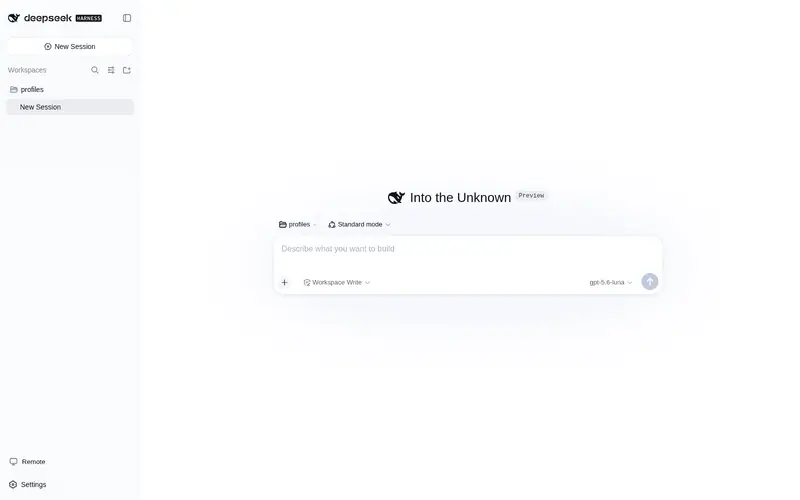
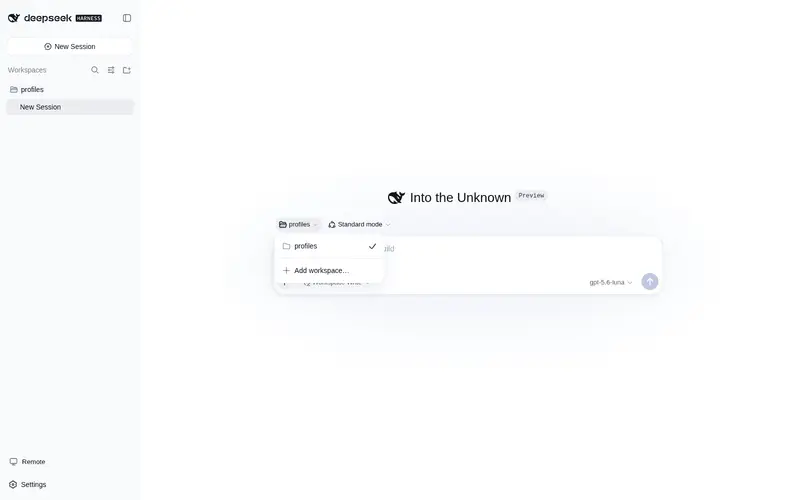
What it does
Secure multi-device remote access for DeepSeek Harness: connect from your phone or browser to your local Harness over an end-to-end encrypted channel (Noise IK with a WebRTC-ready adaptive transport), with device authorization and ApiProxy-only remote capabilities, no shell or arbitrary file access.
Best for
- Users who need to continue a local Harness session securely from a phone, tablet, browser, or another computer.
- Teams that want device authorization and end-to-end encrypted remote session interaction without exposing a public host port.
- Remote workflows limited to Harness UI capabilities such as monitoring progress, sending instructions, answering questions, and handling approvals.
Not ideal for
- Remote administration requiring a shell, remote desktop, arbitrary file reads, or filesystem modification; these capabilities are intentionally not exposed.
- Organizations that require a currently available self-hosted relay; that option is documented as future work.
- Production environments unwilling to adopt a developer-preview release or pin an explicit version.
README
DeepSeek Harness Remote
| English | 中文 |
Connect once. Ready whenever you are.
Continue a DeepSeek Harness session from your phone, tablet, or any browser.
Return to the same Harness session from whichever device is with you. Harness keeps running on your work computer, with the same workspaces, tools, and project setup. Remote is simply another window into that environment.
Developer preview — pin an explicit version when installing.
What you can do
- Follow an active session and review its latest progress
- Send new instructions or change direction
- Answer questions and respond to permission requests
- Open workspaces from any connected computer
- Move between devices without moving your work
Remote is available in a browser and through the Remote workspace entry in Harness on another computer.
A developer-preview VS Code client also lives in apps/vscode. It can sign in,
pin and connect to an authorized Host, browse Host workspaces/sessions, and open conversations beside the Activity Bar.
Build it with pnpm --filter deepseek-harness-remote-vscode build; see its README.
Install the Host plugin
Install the plugin on the computer where Harness and your projects run.
In DSH Desktop, open Extensions → Manage plugins… and install:
ds-harness-remote
Or install it for the web profile:
dsh plugin --profile web add ds-harness-remote
To pin a GitHub release instead, install github:liguobao/deepseek-harness-remote#v0.3.15.
Restart Harness after installation.
Sign in and connect
- Open Remote from the Harness sidebar.
- Sign in with Zhihu authorization, or use your account and password. New password accounts can register with invitation code NRAE-NUUM-C9UY.
- Enable remote control for the current computer to make it available from your other devices, or select another online computer to control it directly.
- Choose an existing workspace or browse remote directories to open one.
Note: A self-hosted relay node option will be provided later.
A quick tour
Enable Allow control of this device in Remote settings to make the current computer available as a Host.

Open Remote on another computer, select an online Host, then choose or browse for a workspace.

The workspace opens in the native Harness interface, with the active Host and encrypted connection status shown in the header.

Secure by design
- The Host makes outbound connections only. No public port is opened.
- Session traffic is end-to-end encrypted. The service relays ciphertext without storing session plaintext or device private keys.
- Remote exposes only the Harness capabilities required by the interface. It does not provide a shell or remote desktop.
- Folder browsing lists directories only; it cannot read files or change the filesystem.
- Removing a device immediately revokes its Remote access.
For implementation details, see the Plugin guide, documentation index, and Remote Protocol.
License
Frequently Asked QuestionsFAQ
Use the verified command dsh plugin --profile default add github:liguobao/deepseek-harness-remote in a DSH-enabled shell. The command resolves the public package metadata and keeps the plugin attached to the catalog identity shown on this page.
Compatibility follows the bundle and profile status shown above. If a profile is not detected, keep the plugin disabled there and check the repository documentation before enabling it in production.
The GitHub link and activity metadata are the source of truth for releases and maintenance. Revisit this page after a new release to confirm the catalog has observed the latest version.