MAXeaglet/dsh-bash-terminal
One shell tool for PowerShell / Git Bash / WSL on Windows plus an interactive PTY terminal; the default terminal is chosen by the user in DSH settings.
Listed
10
Tools
Bundle verified
Preview
What it does
One shell tool for PowerShell / Git Bash / WSL on Windows plus an interactive PTY terminal; the default terminal is chosen by the user in DSH settings.
Best for
- Windows DSH users who want one shell tool for PowerShell, Git Bash, or WSL.
- Users who want the shell backend fixed by a persistent UI setting rather than selected by the model.
- Workflows needing an interactive PTY or registered background shell jobs.
Not ideal for
- Non-Windows systems; the plugin registers its tools only on win32.
- Commands that depend on cwd, variables, or aliases persisting between one-shot shell calls.
- PowerShell workflows requiring ConstrainedLanguage protection; the plugin's extra shell does not provide it.
- Interactive PowerShell 5.1 or consistently reliable interactive WSL sessions under ConPTY.
README
dsh-bash-terminal

DSH(DeepSeek Harness)插件:一个 shell 工具,在 Windows 上统一执行 PowerShell / Git Bash / WSL 三种终端命令。
| 后端 | 实际执行 | 语法 / 路径 | 环境变量 |
|---|---|---|---|
powershell(默认) |
pwsh -NoLogo -NoProfile -NonInteractive -Command <cmd> |
PowerShell;C:\...
|
$env:NAME |
gitbash |
Git for Windows bash -lc <cmd>
|
POSIX;/d/WorkSpace;PATH 含 /usr/bin、/mingw64/bin
|
$NAME |
wsl |
wsl [-d <distro>] -e bash -lc <cmd> |
Linux;/mnt/d/...
|
$NAME(经 WSLENV) |
每次调用都启动全新 shell:不保留状态(cwd / 变量 / 别名)——请传 workdir 而不是用 cd。
设计要点
-
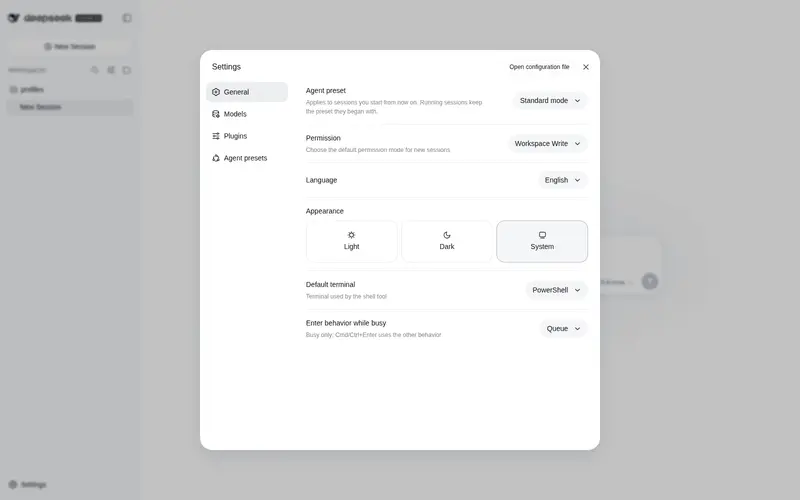
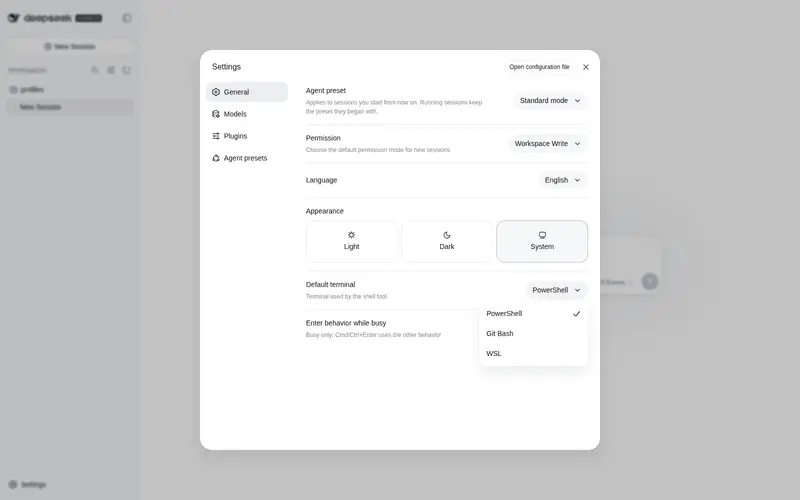
终端由用户决定,AI 无法更改:Web UI 设置页(设置 → 通用)出现”默认终端”下拉(PowerShell / Git Bash / WSL);
shell工具永远只使用该设置,不暴露终端参数给模型。设置通过 DSH settings 系统持久化(settings.yaml)。 -
不占用
ctx.shell能力接缝:DSH 自带的沙箱化pwsh工具保持原样可用;本插件的shell工具是额外的多终端入口。 - 通过共享的
ctx.subprocessseam 派生进程:进程树终止(Windowstaskkill /T)、SIGTERM→grace→SIGKILL、输出 spill 文件,与官方dsh-tool-bash/dsh-tool-pwsh行为一致。 - 后台任务注册进通用
jobsregistry,支持run_in_background/job_output/job_kill。 - 前端设置页的「默认终端」是枚举(UI 自动渲染为下拉),模型每次调用都只按该设置执行,无法自行切换终端。
安装(web profile)
标准安装(npm 发布后,官方 bundle 机制)
插件带官方 dsh.bundle manifest(包内 cordis.patch.yml),profile 列出本包时 DSH 自动应用挂载,无需手改 profile 配置:
# 1. 安装插件包
npm install -g dsh-bash-terminal
dsh plugin --profile web add dsh-bash-terminal   # 自动加进 profile 的 bundles 并应用 patch

# 2. patch DSH 设置白名单(DSH 限制,见下方说明)
powershell -ExecutionPolicy Bypass -File install.ps1 install

# 3. 重启 dsh web
已用临时 profile 实测:
bundles: [dsh-bash-terminal]→ dump-config 自动出现tool-bash-terminalentry。
本地开发安装(junction 直连,改源码即时生效)
# 1. 链接插件包到 profile 的 node_modules(junction,改源码即时生效)
$profile = "$env:USERPROFILE\.dsh\profiles\web"
New-Item -ItemType Junction -Path "$profile\node_modules\dsh-bash-terminal" -Target "D:\WorkSpace\projects\dsh-bash-terminal" | Out-Null

# 2. 让插件能解析 @deepseek-ai/* 依赖(junction 到 profile 的依赖树)
New-Item -ItemType Junction -Path "D:\WorkSpace\projects\dsh-bash-terminal\node_modules\@deepseek-ai" -Target "$profile\..\node_modules\@deepseek-ai" | Out-Null

# 3. 让 profile 通过官方 bundle 挂载插件(install.ps1 install 会自动做;等价于在 dsh.profile.bundles 加 "dsh-bash-terminal")
# 4. (仅修改前端源码后)重新打包 client bundle:
#    cd D:\WorkSpace\projects\dsh-bash-terminal && node scripts/build-client.mjs
# 5. 让设置 UI 接受本插件的设置写入(DSH 限制,见下方说明)
# 6. 重启 dsh web
DSH 设置 UI 白名单限制:DSH 的 api-gateway(dsh-host-apiproxy)对 Web 设置客户端暴露的 settings namespace 有硬编码白名单(第三方插件 的设置默认会被
settings-not-exposed拒绝,UI 里改了不生效)。 install.ps1 会自动 patch 该白名单(加入bash-terminal,先备份原文件)。 升级 DSH 后需重新运行 install.ps1 恢复 patch。卸载时 install.ps1 会还原。
当前已不再需要手动改 profile 的
cordis.patch.yml:插件包内自带dsh.bundle.patch(包内cordis.patch.yml),只要 profile 的dsh.profile.bundles里有dsh-bash-terminal,DSH 就会自动挂载。
验证组合树(无需重启):
node "$env:APPDATA\nvm\v24.16.0\node_modules\@deepseek-ai\dsh\lib\bin.js" --profile web --dump-config | Select-String dsh-bash-terminal
使用
用户在 Web UI 设置默认终端:打开设置(齿轮)→ 通用 →「默认终端」下拉,选择 PowerShell / Git Bash / WSL 之一。改动即时生效并持久化。
模型看到 shell 工具后,执行命令时自动使用你选择的终端(工具不暴露终端参数,模型无法更改你的选择):
- 默认终端 = Git Bash 时:
shell(command: "git status")走 Git Bash - 默认终端 = WSL 时:
shell(command: "ls -la /mnt/d/WorkSpace")走 WSL;传distro: "Ubuntu"可指定发行版 - 默认终端 = PowerShell 时:
shell(command: "Get-Process node")走 PowerShell
模型使用示例
- 一次性命令(默认终端):
shell(command: "git status", description: "查看 git 状态") - 跨轮保持状态(交互式):
terminal(action: "open")→ 记下sessionId→terminal(action: "send", sessionId, input: "cd /d/project\n")→terminal(action: "send", sessionId, input: "npm run dev\n")→terminal(action: "close", sessionId) - 中断正在运行的程序:
terminal(action: "signal", sessionId, signal: "SIGINT") - 查看活动会话:
terminal(action: "list") - 沙箱拒绝后升级:
shell(command: ..., sandbox_permissions: "workspace-write", justification: "...")
配置
Web UI 设置(推荐):设置 → 通用 →「默认终端」。
插件 row 的 config(覆盖默认,作为设置的 composition 基准):
| 键 | 默认 | 说明 |
|---|---|---|
defaultShell |
powershell |
设置未覆盖时的后端 |
timeoutMs |
120000 | 默认超时 |
maxTimeoutMs |
600000 | 调用方 timeoutMs 上限 |
pwshPath |
自动探测 | 固定 pwsh.exe 路径 |
gitBashPath |
自动探测 | 固定 git bash.exe 路径 |
wslPath |
自动探测 | 固定 wsl.exe 路径 |
发布(npm)
npm 账号已启用 2FA 发布验证,需一次性验证码:
cd D:\WorkSpace\projects\dsh-bash-terminal
npm publish --otp <验证码>   # 验证码来自你的认证器
发布前先 npm pack --dry-run 检查内容、跑 node scripts/build-client.mjs 重建 client bundle。
卸载
推荐直接运行:
powershell -ExecutionPolicy Bypass -File install.ps1 uninstall
它会删除 junction、恢复设置白名单、清理旧版遗留的 cordis.patch.yml 挂载块,并从 dsh.profile.bundles 移除 dsh-bash-terminal。之后重启 dsh web 即可。
手动卸载时,除了删除 node_modules\dsh-bash-terminal,还要记得从 profile package.json 的 dsh.profile.bundles 中移除 dsh-bash-terminal。
交互式终端(terminal 工具)
terminal 工具在 PTY 接缝(node-pty;Windows 上因上游 spawnTerminal 的 process inspector 仅支持 POSIX,由 lib/terminal.js 直连 node-pty,非 Windows 仍走官方 ctx.subprocess.spawnTerminal)上提供持久交互会话:
-
action: open启动一个真实终端会话(按你设置的默认终端;wsl 可传distro),返回sessionId -
action: send写入输入并读新输出;action: read只读不写;action: signal向前台进程组发信号(SIGINT = Ctrl+C) -
action: close终止会话 - 会话状态跨调用保持(cwd / 变量 / 别名),适合 REPL、ssh、交互式 CLI
-
send会等待输出稳定(300ms 静默,上限 5s)返回完整回复;输出超 1MB 时报truncated提示 - 输入用
\\n(或 \r)结尾表示回车
沙箱(官方机制对接)
shell 工具走 DSH 官方沙箱接缝(ctx.sandboxPolicy + ctx.sandbox):
- 每次调用解析当前沙箱策略;
danger-full-access会话直接执行(不包装)。 - PowerShell / Git Bash 后端经
ctx.sandbox.confine包装 argv —— 与官方 executor 相同的 fail-closed 语义:请求受限模式但无可用后端时抛SandboxUnavailableError,拒绝裸跑。 - WSL 后端不包装:WSL 独立 Linux 虚拟机本身就是隔离(结果报告
enforcement: wsl-isolation)。 - 受限模式下被沙箱拒绝时,结果携带官方标记
[sandbox: file access denied under <mode> mode]与同轮升级提示;模型可凭sandbox_permissions+justification发起一次升级(经ctx.approval用户审批),与官方 bash/pwsh 工具完全一致。 - 注意:DSH 的 Windows ACL 沙箱 launcher(
node-addon-landlock-run-win32-x64)当前尚未在 npm 发布,本机沙箱后端暂不可用;架构已就绪,DSH 发布后自动生效。
⚠️ 安全说明
shell 工具的受限模式会经 ctx.sandbox.confine 包装(fail-closed),但它是额外的多终端入口,不享受官方 pwsh 工具的 ConstrainedLanguage 限制;danger-full-access 下与 dsh 进程同权限。DSH 的文件操作工具(read/write/edit)仍受文件沙箱约束。仅在你信任的会话中使用;需要受沙箱保护的 PowerShell 时请继续使用官方 pwsh 工具。
交互终端已知限制(ConPTY)
- PowerShell 5.1 无法在 ConPTY 启动(0x8009001d)—— 交互式 PowerShell 需要安装 PowerShell 7(一次性命令不受影响)。
-
wsl.exe 交互模式在 ConPTY 下可能触发 WSL 服务 RPC 错误(0x8007072c,偶发)—— 一次性
wsl -e bash -lc ...命令正常;交互会话建议直接用 Windows Terminal / WSL 终端,或重试。 -
Windows 上 node-pty 不接受命名信号:
signal的SIGINT映射为 Ctrl+C(\x03),其他信号(SIGTERM/SIGKILL/SIGTSTP/SIGHUP)退化为终止会话。 - Git Bash 交互会话完全正常。
已知限制
- WSL 后台进程在超时/中断后可能在发行版内短暂残留(WSL 实例在最后一个进程退出后自动关闭)。
- Git Bash 是 msys2 环境,与 WSL 的 Linux 行为存在差异(路径映射、包可用性)。
- 本插件仅在
win32平台注册工具。
测试
cd D:\WorkSpace\projects\dsh-bash-terminal
node test\unit.mjs    # 纯函数单测(路径解析/argv/env/渲染/校验)
node test\apply.mjs   # apply + execute mock 集成测试(用户设置决定后端、workdir、WSLENV、超时)
node test\client.mjs  # client 插件逻辑测试(slot 注册/初始快照/setShell 写透)
node scripts/build-client.mjs  # 打包前端设置项 bundle → dist/client.js
Frequently Asked QuestionsFAQ
Use the verified command dsh plugin --profile default add github:MAXeaglet/dsh-bash-terminal in a DSH-enabled shell. The command resolves the public package metadata and keeps the plugin attached to the catalog identity shown on this page.
Compatibility follows the bundle and profile status shown above. If a profile is not detected, keep the plugin disabled there and check the repository documentation before enabling it in production.
The GitHub link and activity metadata are the source of truth for releases and maintenance. Revisit this page after a new release to confirm the catalog has observed the latest version.