omdsh-dev/dsh-open-in-vscode
Open DeepSeek Harness workspace directories in VS Code directly from the web GUI.
Listed
49
Notify
Bundle verified
Preview
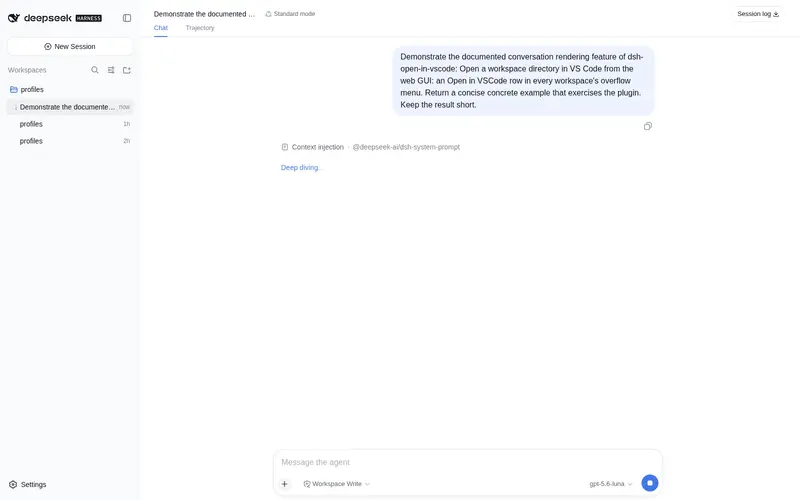
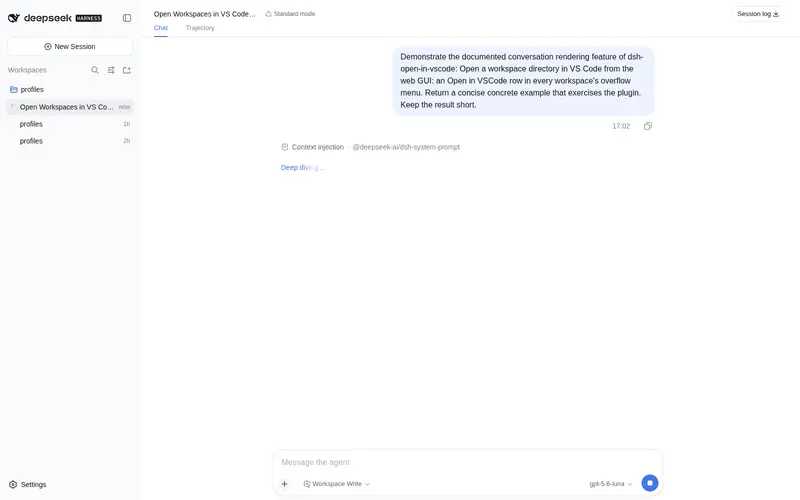
What it does
Open DSH workspace directories in VS Code directly from the web GUI.
Best for
- DSH Web users who frequently move from a workspace sidebar entry to editing that directory in VS Code.
- Teams using another directory-opening editor CLI that can be configured through the plugin's command and arguments.
- Users wanting an explicit, user-clicked editor launch with no model-facing tools or filesystem access by the plugin.
Not ideal for
- TUI or headless workflows without the Web workspace row menu.
- Machines without VS Code or another configured editor executable available on PATH or at a supported absolute location.
- DSH versions older than 0.1.0-rc.6, which are outside the documented compatibility range.
README
dsh-open-in-vscode
Open a workspace directory in VS Code straight from the DeepSeek Harness web GUI: every real Workspace row in the sidebar gains an Open in VSCode row inside its … overflow menu.
What it does
- The client half uses the harness’s
sidebar.workspaces.row-menuslot when available and falls back to a scoped compatibility adapter on the public DSH0.1.0-rc.6build. Both paths render the same locale-following menu row — 在 VSCode 中打开 under the Chinese locale, Open in VSCode under English. - The row’s click closes the menu and calls the host over the strict Typert
Remote
openInVscode/open, passing the workspace directory. - The host half spawns the configured editor CLI on that directory
(
code <path>by default), detached, so the editor outlives the server.
Prerequisites
- VS Code, or an editor CLI on PATH. On Windows, the default
codecommand also discovers standard per-user and system VS Code installations. On macOS, install the VS Code shell command or set the plugincommandto any editor that opens a directory). - DSH
0.1.0-rc.6or newer. The plugin uses the native Workspace row-menu extension point where present and a compatibility adapter onrc.6.
Install
Add the plugin to your web profile (this runs pnpm inside the profile and reconciles the bundle layer):
dsh plugin --profile web add https://github.com/omdsh-dev/dsh-open-in-vscode/archive/refs/tags/v0.1.6.tar.gz
Restart the web server (kill -TERM <pid> and wait for exit — never
kill -9, it tears the session zstd log mid-frame), then refresh the page.
The host plugin mounts under dsh-open-in-vscode; the client bundle is
served at /plugins/dsh-open-in-vscode/client.js.
The versioned tarball replaces older pinned commits without running a git
prepare script. Confirm the installed version with:
dsh plugin --profile web list dsh-open-in-vscode --depth 0
Configuration
Deployment-varying choices are validated Config fields, changeable from
cordis.yml:
| Key | Default | Meaning |
|---|---|---|
command |
code |
Executable that opens a directory. The default also probes standard Windows VS Code install locations; other commands resolve through PATH. |
args |
[] |
Extra arguments passed before the directory path. |
A missing executable fails loud with a fix hint; relative paths are refused.
Capability boundary
| Action | Runs where | Requires approval |
|---|---|---|
| Open a workspace directory in the editor | Host (user gesture) | No — the user clicked the row |
| Anything else | — | The plugin has no tools, no settings namespace, and no model-facing surface |
The plugin adds no tools, no skills, and no settings; it only opens the directory the user already opened in DSH. It never reads or writes files itself.
Development
pnpm install
pnpm run check   # typecheck + lint + test + build; commit lib/ (file: installs run without a build)
Layout: the wire contract lives in one module (src/contract.ts) shared by
the host manifest (src/typert.ts) and the client contribution
(src/client/remote.ts); the harness owns the slot declaration and the
Menu node-entry kind this plugin composes through.
License
MIT
Frequently Asked QuestionsFAQ
Use the verified command dsh plugin --profile default add github:omdsh-dev/dsh-open-in-vscode in a DSH-enabled shell. The command resolves the public package metadata and keeps the plugin attached to the catalog identity shown on this page.
Compatibility follows the bundle and profile status shown above. If a profile is not detected, keep the plugin disabled there and check the repository documentation before enabling it in production.
The GitHub link and activity metadata are the source of truth for releases and maintenance. Revisit this page after a new release to confirm the catalog has observed the latest version.