s3yf1337/dsh-desktop
Desktop profile for the DeepSeek Harness: a native Tauri window over the harness web surface — tray, single-instance, OS notifications, suggest-only updater, native dialogs, drag & drop, and an in-app settings tab.
Listed
0
Ui
Bundle verified
Preview
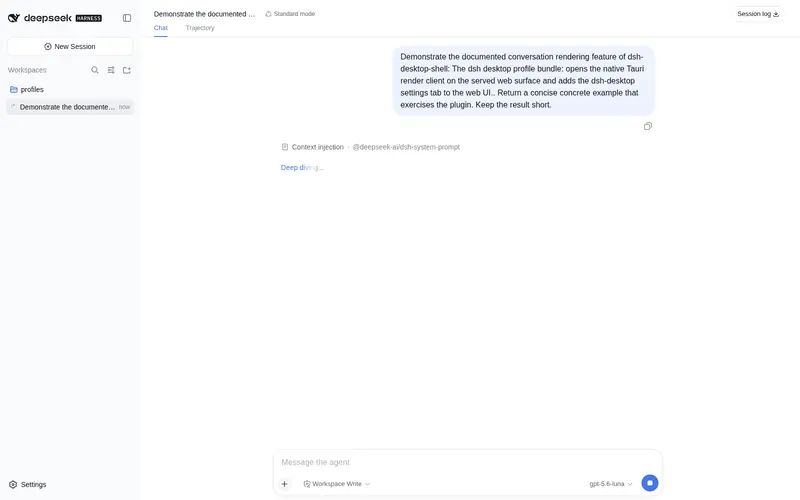
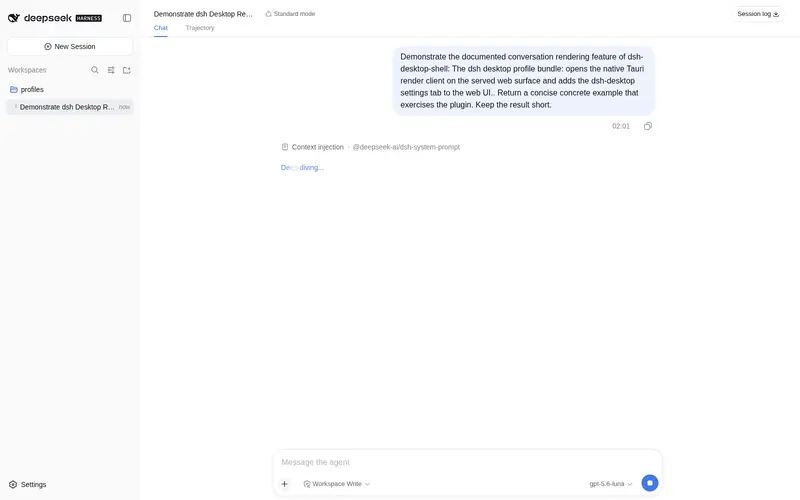
What it does
Desktop profile for dsh: native Tauri window over the harness web surface with tray, native notifications, a file-manager panel, and one-click updates.
Best for
- Existing dsh users who want the harness Web surface in a native Linux, macOS, or Windows window.
- Desktop workflows that benefit from tray access, native notifications, drag-and-drop, and OS dialogs.
- Users who want integrated file browsing and previews alongside their harness sessions.
Not ideal for
- People seeking a standalone application with a single installer and no existing dsh runtime.
- Headless, terminal-only, or server automation workflows that do not use a desktop UI.
- Workflows requiring previews of text files over 1 MiB or images over 8 MiB within the built-in preview panel.
README
dsh-desktop
DeepSeek Harness in a native desktop window — built the way the harness itself is built: as a plugin, not a fork.




dsh-desktop is a DeepSeek Harness
profile that composes the standard bundles (dsh-base + dsh-web-app) with a
small plugin — this repo’s dsh-desktop-shell — which opens the harness web
surface in a native Tauri window: custom title bar, tray icon, native
notifications, a real file-manager panel, and one-click updates.
The idea: desktop as a plugin
DeepSeek Harness is built on the principle that everything is a plugin: models, tools, sandboxes, session storage, the UI — even the agent loop itself. The desktop experience should follow the same rule.
This project adds a native window without forking or repackaging the harness. The profile is plain composition:
dsh --profile desktop → dsh-base + dsh-web-app + dsh-desktop-shell
That one decision buys a lot:
- Always in sync. The harness keeps updating; so do you. There is no fork to rebase and no bundled copy to refresh — upstream releases land in your profile exactly the way they always do.
- Composable. The shell is one row in your profile’s bundle list. Keep your other bundles, swap the web app, add plugins — the desktop layer stays a layer, not a replacement.
- Small. The native client is a Tauri binary, not a bundled browser plus a full runtime. Your dsh stays your dsh.
-
Honest trade-off. The plugin approach assumes you already run
dsh. If you want a single installer with zero prerequisites, a standalone app that bundles its own runtime is the better fit. If you want the desktop to be part of your harness — same config, same workspaces, same plugins — this is the one that fits.
Features
-
Native window with an app icon in the dock/taskbar and a custom title
bar (drag region, minimize/maximize/close) drawn by the web surface,
matching the app theme on every platform. The window title follows the
chat open in the UI right now (
DeepSeek Harness — <chat title>), not the last started agent. -
Explorer panel — a real file manager. Browse any folder (not just the
workspace) with breadcrumbs, back/forward, name filter and recursive
search, sort by name/size/date. Right-click or keyboard (F2 rename, Del to
trash, arrows) to create, rename, copy, cut, paste, delete, open
externally. Files changed or created since your last look are marked live
(auto-refresh). A Preview tab renders markdown with the app’s own
renderer (headings, tables, task lists, syntax-highlighted code with a
copy button, math — and relative images resolved from the local disk),
renders mermaid diagrams (bundled with the app, works offline) and
CSV/TSV tables with line/bar charts, opens local
.htmlpages in a sandboxed frame, shows images (click to zoom, dimensions), syntax-highlights source code files (shiki, the app’s own highlighter), and falls back to a hex dump for binary files. A URL bar in the preview opens any web page (external links land in the system browser). Previews re-render automatically when the file changes on disk (text 1 MiB / images 8 MiB caps). - Wired into the harness. Right-click a file → Send path to agent inserts its workspace-relative path into the composer; images can be attached to a message — or just drag an image file into the window: it lands in the composer as a real attachment (any other file inserts its path). The workspace picker (hero + sidebar + settings) is the panel in “choose a folder” mode instead of an OS dialog.
-
Links that work. Every
http(s)/mailtolink in the chat and in markdown previews opens in your system browser — no more deadtarget="_blank"clicks inside the webview. - Chat search (Ctrl/Cmd+F). A quick-search bar over the conversation: live case-insensitive highlighting, Enter/↑/↓ to jump between matches, Esc to leave. Highlights are painted over the text without touching the message DOM, so streaming re-renders never corrupt the chat.
- Tray + close-to-tray. Closing the window hides it; running agents keep working. The tray menu carries a live agent monitor: every running agent with a refreshable log tail and a Stop agent action, plus a badge on the tray icon when an agent finishes (cleared from the menu).
- Native notifications on agent finish, error, and question events.
- One-click updates. Download, apply, restart. Nothing is applied automatically; background checks are opt-in (off by default).
- Workspace selection via the OS folder dialog, or drag-and-drop a folder into the window.
-
A
dsh-desktoptab inside the harness Settings for desktop preferences.
Screenshot

DeepSeek Harness in a native window: the harness web surface with the custom title bar and the explorer panel.
Install
Requires the dsh CLI. Rust is needed only for the first build from
source — prebuilt client binaries skip it.
Pre-built installers per platform — .deb (Linux), .dmg (macOS), NSIS
.exe (Windows) — are published on the
releases page. One
installer places the client binary and registers an app-menu entry; the
first launch bootstraps the desktop profile into dsh and opens the window.
From source (Linux/macOS dev path):
git clone https://github.com/s3yf1337/dsh-desktop && cd dsh-desktop
./install.sh              # full bootstrap (builds the client if needed)
./install.sh --no-build   # use an existing client binary, never build
./install.sh --rebuild    # force a client rebuild
dsh-desktop
The client binary itself is also a plugin installer:
dsh-desktop-shell install              # bootstrap the profile + install client/launcher
dsh-desktop-shell install --prefix /usr  # OS-package layout (menus under /usr/share)
dsh-desktop-shell                      # install, then boot the profile
dsh-desktop-shell --version
Runs on Linux, macOS, and Windows.
Frequently Asked QuestionsFAQ
Use the verified command dsh plugin --profile default add github:s3yf1337/dsh-desktop in a DSH-enabled shell. The command resolves the public package metadata and keeps the plugin attached to the catalog identity shown on this page.
Compatibility follows the bundle and profile status shown above. If a profile is not detected, keep the plugin disabled there and check the repository documentation before enabling it in production.
The GitHub link and activity metadata are the source of truth for releases and maintenance. Revisit this page after a new release to confirm the catalog has observed the latest version.