siberiah2o/dsh-plugin-terminal
Bottom terminal panel plugin for DeepSeek Harness (DSH Web GUI)
Listed
4
Ui
Bundle verified
Preview
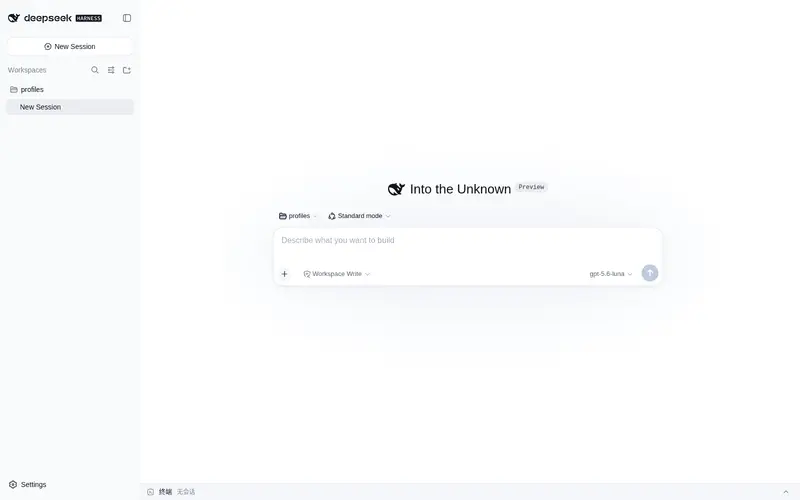
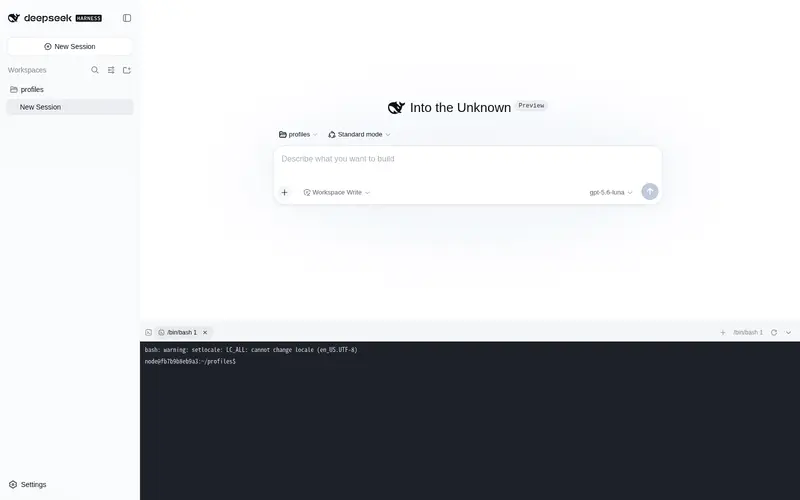
What it does
Bottom multi-tab terminal panel (node-pty + xterm.js) pinned to the viewport bottom, always below the input box.
Best for
- DSH Web users who want an interactive shell without leaving the conversation page.
- Developers running multiple persistent shell or full-screen coding-CLI sessions in tabs tied to the current workspace.
- Users who need resizable terminal access with saved working directories, scrollback, and restartable history after DSH Web restarts.
Not ideal for
- Headless or non-Web workflows that do not use the DSH Web GUI.
- Remote plain-HTTP deployments that require full Clipboard API behavior; browsers restrict that API outside HTTPS or localhost, so the plugin must use fallbacks.
- Users who only need occasional noninteractive command execution and would gain little from a persistent multi-tab terminal panel.
README
dsh-plugin-terminal
Bottom terminal panel for the DeepSeek Harness (DSH) Web GUI — an interactive multi-tab shell pinned to the bottom of the page (ConPTY on Windows, openpty on Linux/macOS).
中文 · MIT
Install
dsh plugin --profile web add dsh-plugin-terminal && dsh web
Note: this is a DSH (DeepSeek Harness) plugin — do not use plain
npm i dsh-plugin-terminal; it must be installed throughdsh pluginto activate.
Screenshots
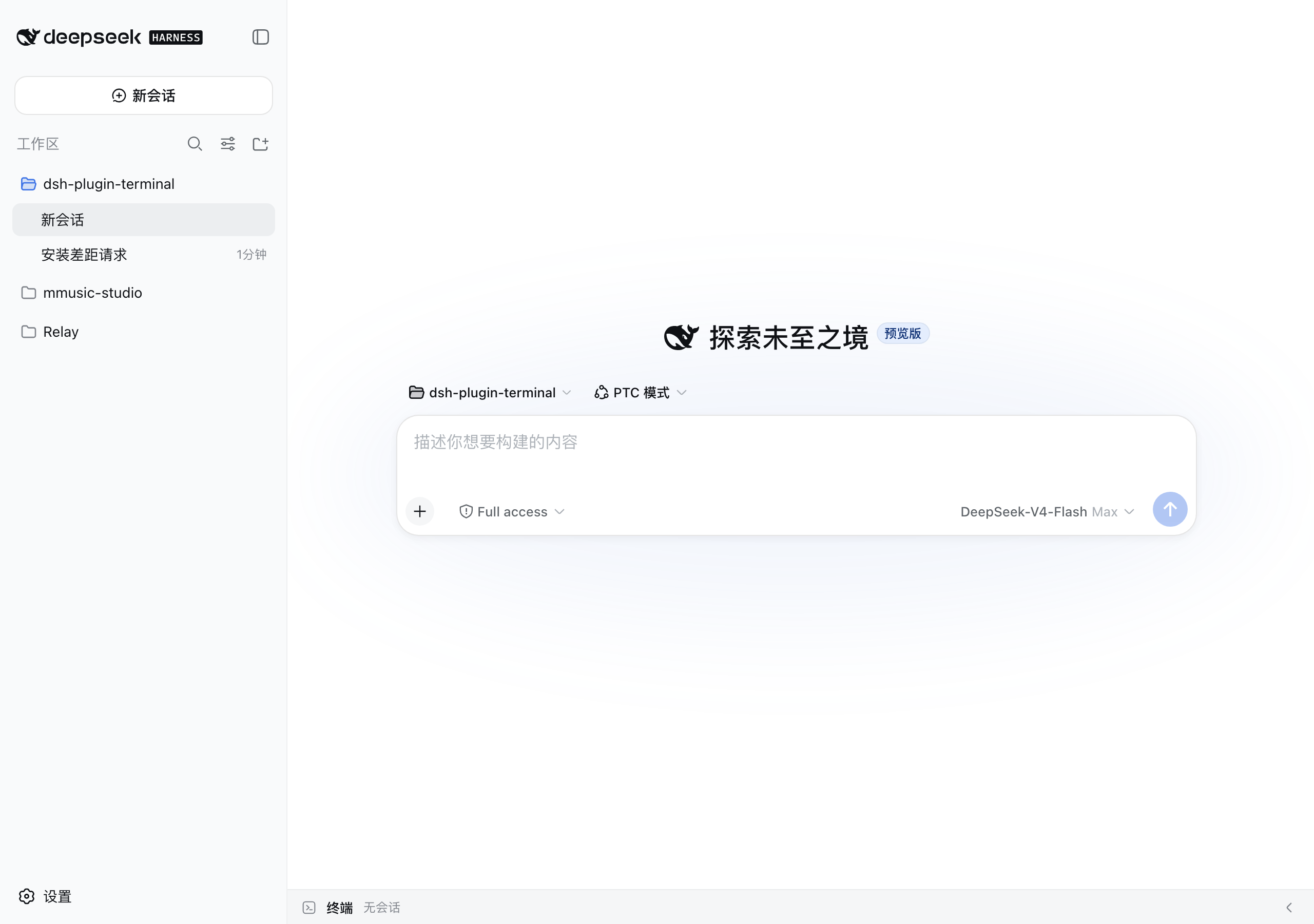
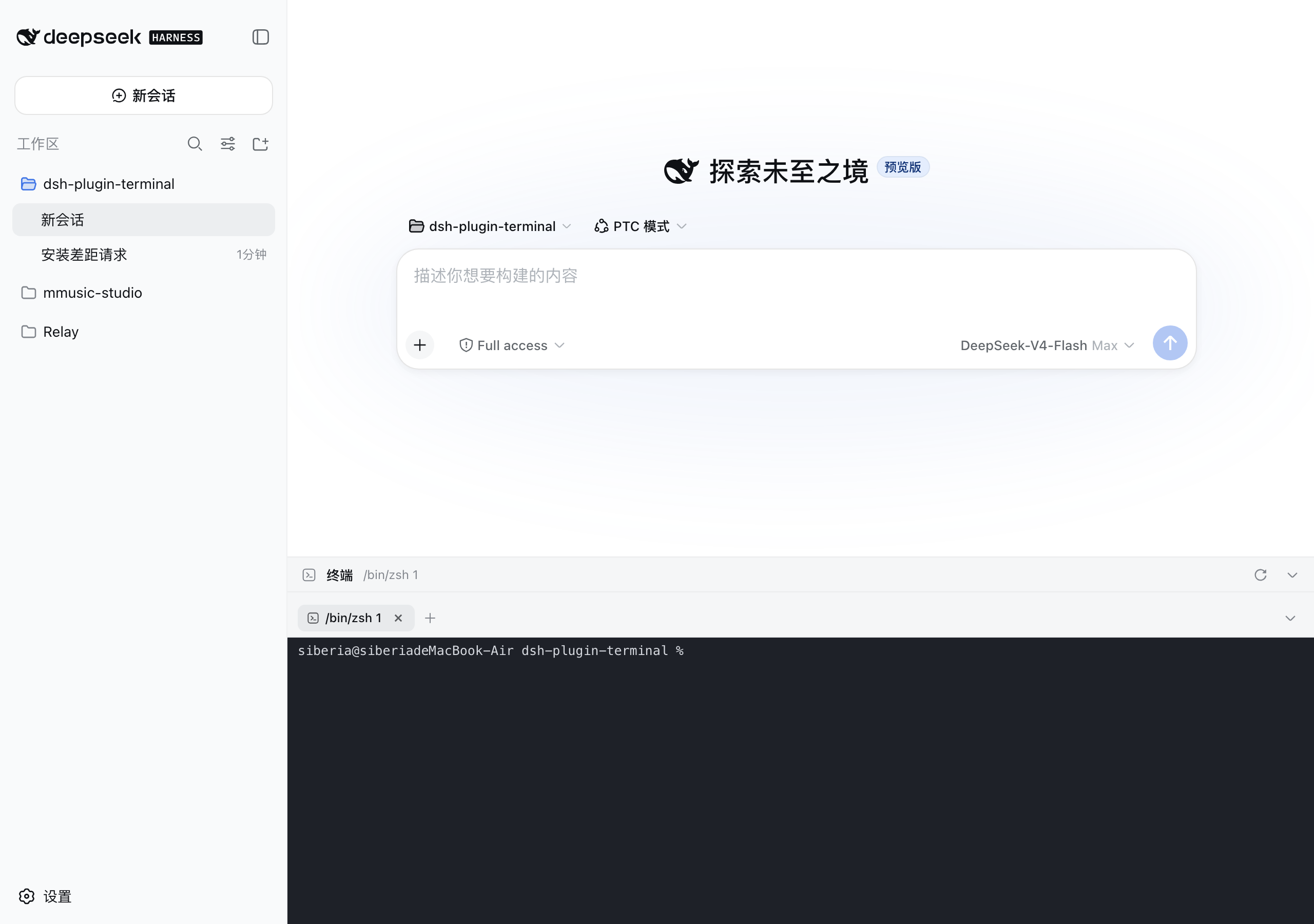
| Collapsed | Expanded | Multi-tab |
|---|---|---|
 |
 |
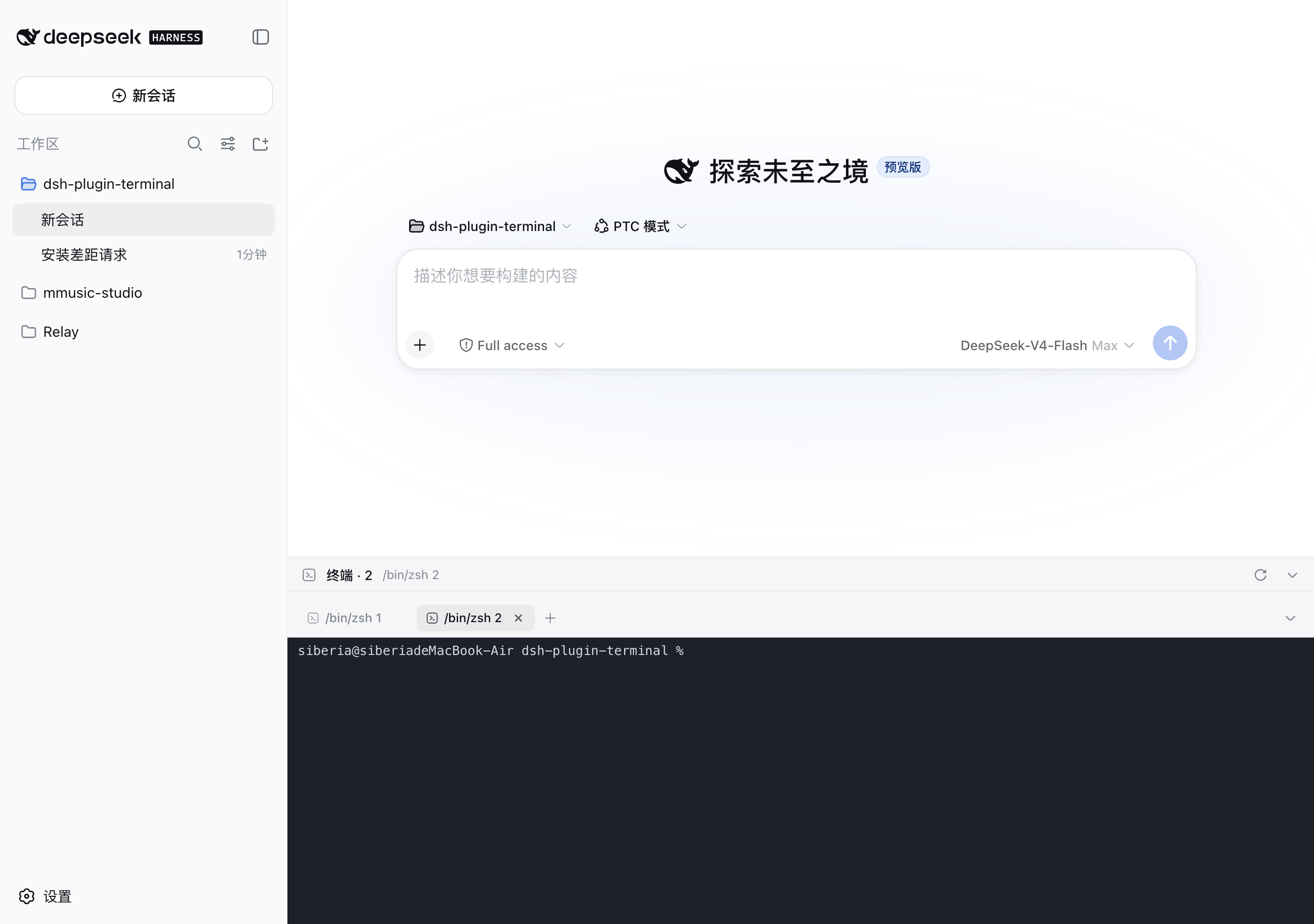 |
Features
- Bottom panel pinned to the viewport, aligned with the conversation column; the input box always stays above the terminal
- Configurable shortcut toggles (default
Ctrl+, e.g.Ctrl+J`); drag the top grip to resize (120px–78% viewport, remembered) - Multi-tab:
+new, ✕ close, ⟳ restart; processes keep running on tab switch; live sessions restore after refresh or workspace switch - Every terminal remembers its working directory: new tabs start in the current DSH workspace; after a
dsh webrestart, ⟳ brings the process back in its original directory instead of the server launch directory -
Terminals survive dsh web restarts: session metadata + scrollback are persisted live to
$DSH_HOME/plugin-data/terminal/; after a restart they come back as “exited” history tabs (full screen replay, one-click restart of the process); tabs you closed stay closed - xterm.js 6: colors, blinking cursor, alternate screen, Unicode v11 (CJK width tables), 10000-line scrollback
- WebSocket duplex channel to the PTY; dark terminal surface in both light and dark themes
- Copy/paste: select with the mouse and release to copy, right-click to paste;
Ctrl+Vpastes,Ctrl+Shift+C/Ctrl+Shift+Vcopy/paste when the clipboard API is available- ⚠️ When the GUI is opened over remote http (not https / not localhost) browsers disable
navigator.clipboard(insecure context) - the plugin falls back toexecCommandcopy and lets the browser’s native context-menu Paste through, so both still work
- ⚠️ When the GUI is opened over remote http (not https / not localhost) browsers disable
Configuration
Plugin behavior lives in the DSH settings document ($DSH_HOME/settings.yaml, section terminal), editable from the GUI at Settings → Plugins. Changes apply to sessions created afterwards — no restart needed; tabs that already exist keep the command they started with.
| Field | Default | Meaning | ||
|---|---|---|---|---|
toggleShortcut |
ctrl+ | Keyboard shortcut toggling the bottom panel. Format: [ctrl |
shift | alt | meta]+[…]+key, e.g. ctrl+j, ctrl+shift+f1. The key can be a letter, digit, F1–F12, or a name (``, space, enter, tab, up/down/left/right, home/end, pageup/pagedown, delete, backspace, escape). |
shellCommand |
(empty — auto-detect) | Command line used to start new terminal sessions. Empty means the platform default (pwsh/powershell/cmd on Windows, $SHELL on POSIX). |
Example — launch cmder on Windows and bind the panel to Ctrl+J:
terminal:
  toggleShortcut: ctrl+j
  shellCommand: cmd.exe /k "C:\cmder\vendor\init.bat"
Notes:
-
shellCommandis used verbatim (no flags are injected): the command line is split on spaces with double quotes honored, so quoted paths work. - If the shortcut is a key the terminal also consumes (Ctrl+J is the shell’s line feed), a press while a terminal pane has focus goes to the shell instead of toggling the panel.
- Operator override: the environment variables
DSH_PLUGIN_TERMINAL_TOGGLE_SHORTCUTandDSH_PLUGIN_TERMINAL_SHELL_COMMANDtake precedence over the settings document (and are the only way to configure headless compositions without the settings service).
Running codex / claude code in the panel
These AI coding CLIs are full-screen TUIs (ANSI escapes + alternate screen + truecolor) and demand a lot from the terminal link. The plugin is tuned for them:
- Child env gets TERM=xterm-256color and COLORTERM=truecolor (when unset), plus LANG/LC_ALL=en_US.UTF-8 and PYTHONIOENCODING=utf-8 on non-Windows, preventing 256-color fallback and CJK mojibake
- xterm.js 6 answers OSC 10/11/12 queries out of the box (Codex theme detection via background-color query just works)
- unicodeVersion “11” keeps mixed CN/EN output aligned; drawBoldTextInBrightColors: false keeps true colors on bold text; CJK fallbacks in the font stack; 10000-line scrollback (500k-char server ring buffer)
If rendering still misbehaves:
- Claude Code: run /tui fullscreen in the session (or CLAUDE_CODE_NO_FLICKER=1 claude) to switch to the flicker-free fullscreen renderer; /tui default reverts
-
Inside tmux: make sure TERM=tmux-256color and tmux >= 3.4, add
set -ga terminal-overrides ',xterm-256color:RGB'if needed - Windows mojibake: use Windows Terminal, chcp 65001, enable the “Beta: Use Unicode UTF-8” system option; fall back to WSL if it persists
- Update the CLI: most rendering bugs are regressions already fixed in newer versions
License
MIT
Frequently Asked QuestionsFAQ
Use the verified command dsh plugin --profile default add github:siberiah2o/dsh-plugin-terminal in a DSH-enabled shell. The command resolves the public package metadata and keeps the plugin attached to the catalog identity shown on this page.
Compatibility follows the bundle and profile status shown above. If a profile is not detected, keep the plugin disabled there and check the repository documentation before enabling it in production.
The GitHub link and activity metadata are the source of truth for releases and maintenance. Revisit this page after a new release to confirm the catalog has observed the latest version.