liguobao/deepseek-harness-remote
基于 DeepSeek Harness 插件机制的多端远程访问方案,让桌面端与 Android 端安全连接并操作远程 Harness。(A multi-device remote access solution built on the DeepSeek Harness plugin system, enabling desktop and Android clients to securely connect to and operate a remote Harness.)
已收录
16
Remote
Bundle 已验证
预览
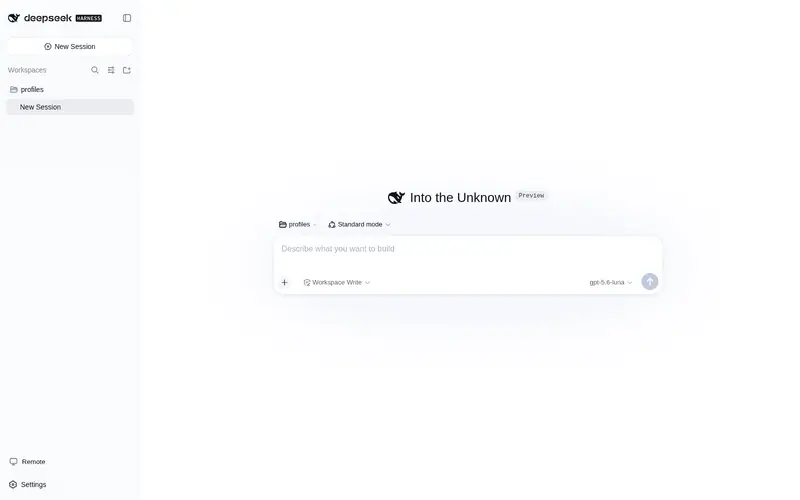
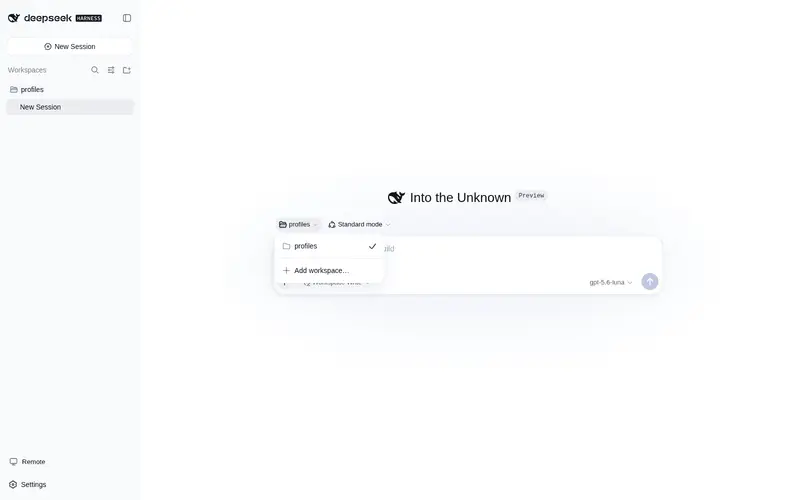
功能介绍
DeepSeek Harness 多端安全远程访问:手机或浏览器通过端到端加密通道(Noise IK + 自适应传输)连接本地 Harness,设备授权管理,远程端仅开放 ApiProxy 能力,不提供 Shell 与任意文件访问。
适合
- 需要从手机、平板、浏览器或另一台电脑安全续接本地 Harness 会话的用户。
- 希望通过设备授权和端到端加密进行远程会话交互、且不开放主机公网端口的团队。
- 仅需 Harness 界面能力的远程工作流,例如查看进度、发送指令、回答问题和处理审批。
不适合
- 需要 Shell、远程桌面、任意文件读取或文件系统修改的远程管理;这些能力被明确排除。
- 要求当前即可使用自托管中继的组织;文档将该选项列为后续功能。
- 不愿采用开发者预览版本或固定明确版本号的生产环境。
README
DeepSeek Harness Remote
| English | 中文 |
Connect once. Ready whenever you are.
Continue a DeepSeek Harness session from your phone, tablet, or any browser.
Return to the same Harness session from whichever device is with you. Harness keeps running on your work computer, with the same workspaces, tools, and project setup. Remote is simply another window into that environment.
Developer preview — pin an explicit version when installing.
What you can do
- Follow an active session and review its latest progress
- Send new instructions or change direction
- Answer questions and respond to permission requests
- Open workspaces from any connected computer
- Move between devices without moving your work
Remote is available in a browser and through the Remote workspace entry in Harness on another computer.
A developer-preview VS Code client also lives in apps/vscode. It can sign in,
pin and connect to an authorized Host, browse Host workspaces/sessions, and open conversations beside the Activity Bar.
Build it with pnpm --filter deepseek-harness-remote-vscode build; see its README.
Install the Host plugin
Install the plugin on the computer where Harness and your projects run.
In DSH Desktop, open Extensions → Manage plugins… and install:
ds-harness-remote
Or install it for the web profile:
dsh plugin --profile web add ds-harness-remote
To pin a GitHub release instead, install github:liguobao/deepseek-harness-remote#v0.3.15.
Restart Harness after installation.
Sign in and connect
- Open Remote from the Harness sidebar.
- Sign in with Zhihu authorization, or use your account and password. New password accounts can register with invitation code NRAE-NUUM-C9UY.
- Enable remote control for the current computer to make it available from your other devices, or select another online computer to control it directly.
- Choose an existing workspace or browse remote directories to open one.
Note: A self-hosted relay node option will be provided later.
A quick tour
Enable Allow control of this device in Remote settings to make the current computer available as a Host.

Open Remote on another computer, select an online Host, then choose or browse for a workspace.

The workspace opens in the native Harness interface, with the active Host and encrypted connection status shown in the header.

Secure by design
- The Host makes outbound connections only. No public port is opened.
- Session traffic is end-to-end encrypted. The service relays ciphertext without storing session plaintext or device private keys.
- Remote exposes only the Harness capabilities required by the interface. It does not provide a shell or remote desktop.
- Folder browsing lists directories only; it cannot read files or change the filesystem.
- Removing a device immediately revokes its Remote access.
For implementation details, see the Plugin guide, documentation index, and Remote Protocol.
License
常见问题常见问题
在启用了 DSH 的终端中执行已验证命令 dsh plugin --profile default add github:liguobao/deepseek-harness-remote。命令会解析公开 package 元数据,并保持插件与本页展示的目录身份一致。
兼容性以页面上展示的 bundle 与 profile 状态为准。如果某个 profile 尚未检测到,请先保持禁用,并在生产启用前阅读仓库文档。
GitHub 链接和 activity 元数据是 release 与维护状态的来源。新版本发布后重新查看本页,确认目录已经观察到最新版本。